Conditions: an introduction

Roadmap

What do conditions do

Enabling conditions

Filter conditions

Validation conditions

Syntax

Variables

What do conditions do

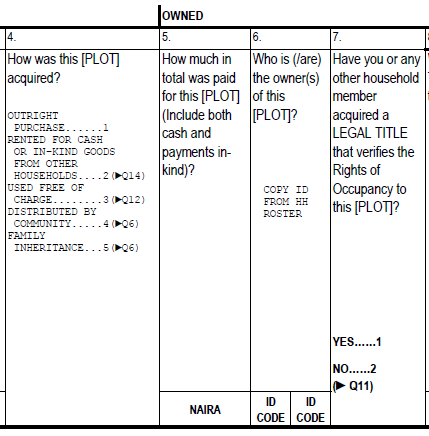
In CSPro

Scope

  • Where focus goes next
  • Whether answers make sense
  • What mode of data entry
  • How data are exported

In Survey Solutions
Scope

  • When questions should be asked
  • Whether answers make sense
  • Whether answer options are shown
  • What value variables take on
  • What mode of data entry
  • How data are exported

Enabling conditions

What they do

Where to put them

How they work

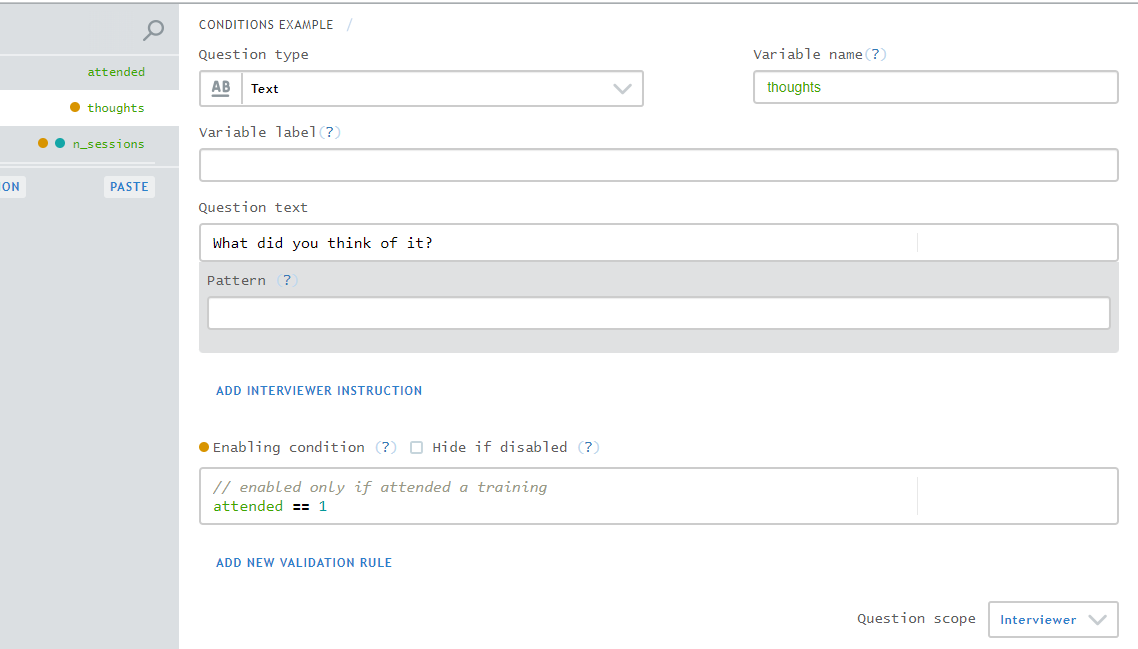
Condition

// enabled only if attended a training
attended == 1

Behavior

  • Depends on a logical condition
  • If true, enable
  • If false (or null), disable
  • (If no condition, enabled by default)

Where they work

Where enablements can be written

  • Sections
  • Sub-sections
  • Roster rows1
  • Questions
  • [Answer options]2
  • Static texts

How Survey Solutions’ conditions differ
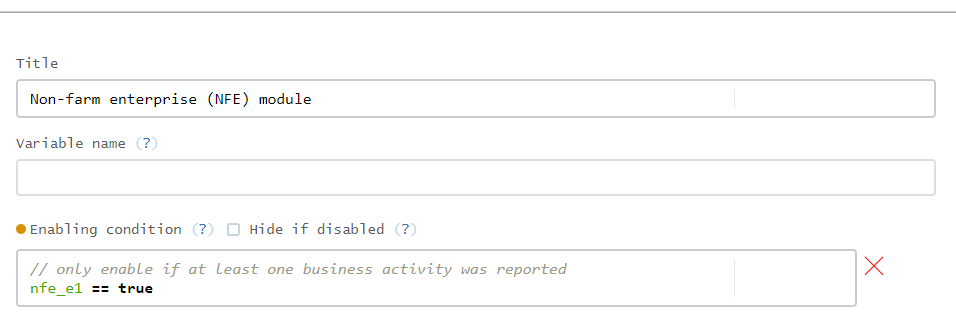
  • Where to put it. Put on question to skip rather than question that triggers the skip.

How Survey Solutions’ conditions differ

  • Where to put it. Put on question to skip rather than question that triggers the skip.
  • What to expect as return value. Evaluate to TRUE/FALSE rather than an action (e.g., skip to question X).

How Survey Solutions’ conditions differ

  • Where to put it. Put on question to skip rather than question that triggers the skip.
  • What to expect as return value. Evaluate to TRUE/FALSE rather than an action (e.g., skip to question X).
  • When evaluated. Evaluated continously throughout data entry session, with some default values.

Filter conditions

What they do

Where to put them

How they work

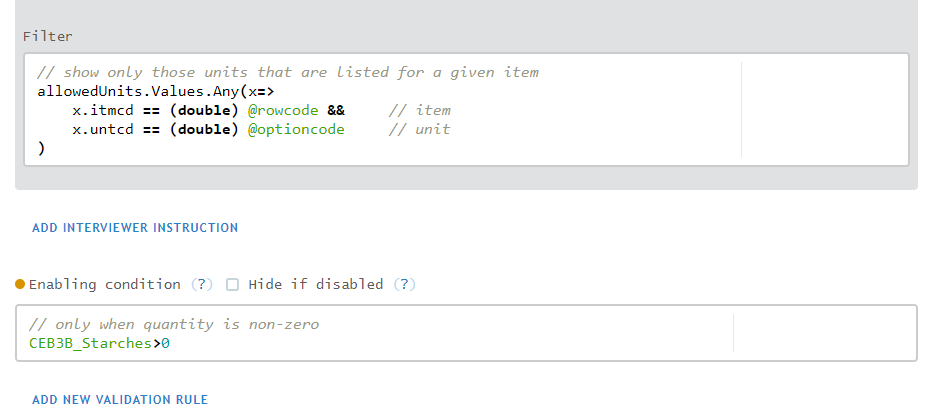
Condition

// if the maximum answer value is answered...
IsAnswered(max_answer_value) ? 
// ... then limit the options to those whose value is less than or equal to it
@optioncode <= max_answer_value : 
// otherwise, show all options
true

Behavior

  • Depends on a logical condition that reference options
  • If true, enable option
  • If false (or null), disable
  • (If no condition, enabled by default)
  • See more details here

Where they work

Categorical questions

  • Single-select
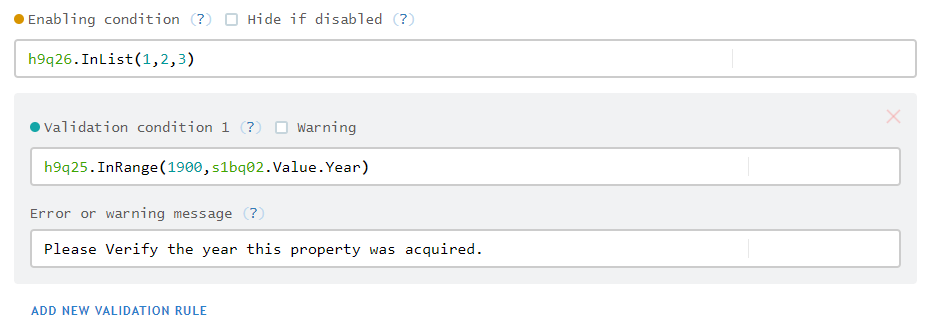
  • Multi-select

Validation conditions

What they do

Where to put them

How they work

Condition

// no more than 2 sessions are possible
self <= 2

Behavior

  • Depends on a logical condition
  • If true, valid answer -> nothing happens
  • If false, invalide answer -> message and change in UI
  • (If no condition, valid by default)

Where they work

Where validations can be written

  • Questions
  • Static texts

How Survey Solutions differs from other CAPI apps
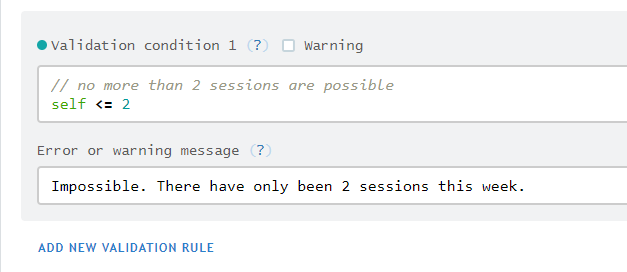
// no more than 2 sessions are possible
self <= 2
  • Describe valid answers. Not invalid answers. Think assert in Stata.

How Survey Solutions differs from other CAPI apps

  • Describe valid answers. Not invalid answers. Think assert in Stata.
  • No need to search for message. Messages are local to validations, not global to the application.

How Survey Solutions differs from other CAPI apps

  • Describe valid answers. Not invalid answers. Think assert in Stata.
  • No need to search for message. Messages are local to validations, not global to the application.
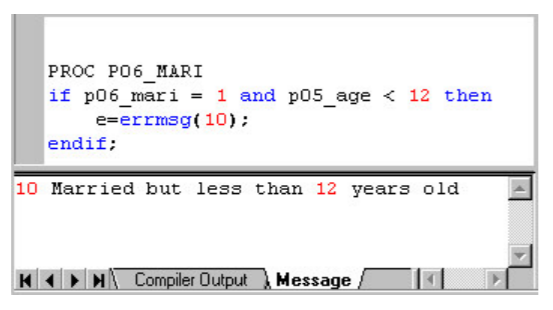
  • Impossible to block invalid answers. Design choice to allow invalid answers and not block fieldwork/data entry. No equivalent of CSPro’s reenter. But other mechanisms for dealing with invalid answers.

Syntax

Basic operators1

Relational

  • Equal: ==
  • Not-equal: !=
  • And the rest: >, >=, <=, <

Logical

  • And: &&
  • Or: ||
  • Not: !

Mathematical

  • Add: +
  • Subtract: -
  • Multiply: *
  • Divide: %

Comments

Inline

// this is a comment
x == 1

Block

/* 
this
is a block
comment
*/

x == 1

Both

/* 
this
is a block
comment
*/

// this is another comment
x == 1

Commands in general

Properties


/* 
Pattern: object.Property
Note: properties are case-sensitive
*/

// how long a list is
my_list.Length

// what the year component of a date is
my_birthday.Value.Year

Methods


/* 
Pattern: object.Method(args)
Note: methods:
- are case-sensitive
- belong to question (data) types
*/

// whether a single-select value lies in a range
single_select.InRange(1, 5)

// whether option 2 was one of the values selected
checkbox.Contains(2)

/* invalid methods and their equivalents */

// wrong: single_select.Contains(2)
// right: single_select == 1 

// wrong: checkbox.InRange(1, 5)
// right: checkbox.ContainsAny(1, 2, 3, 4, 5)

Commands per question type

Categorical: single-select

Relational

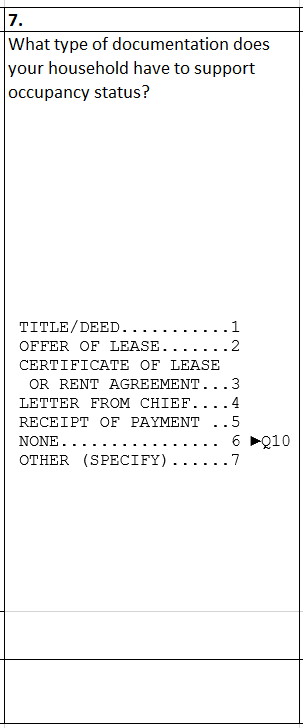
// capture "other" answer if "other (specify)" selected
q06 == 7

Categorical: single-select

InRange

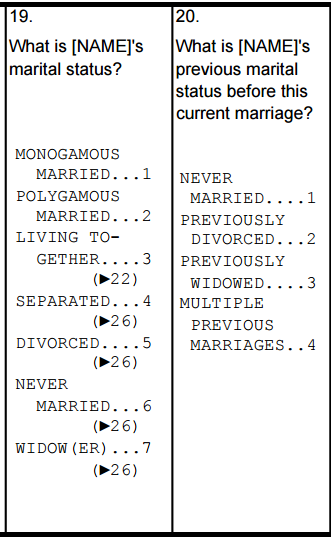
// administer B20 when the household member is married (i.e., answer 1 or 2 to B19)
hh_b19.InRange(1,2)

Categorical: single-select

InList

// enable question 6 when answer is 1, 4, or 5 is chosen for question 4
ag_q4.InList(1,4,5)

Categorical: single-select

IsNoneOf

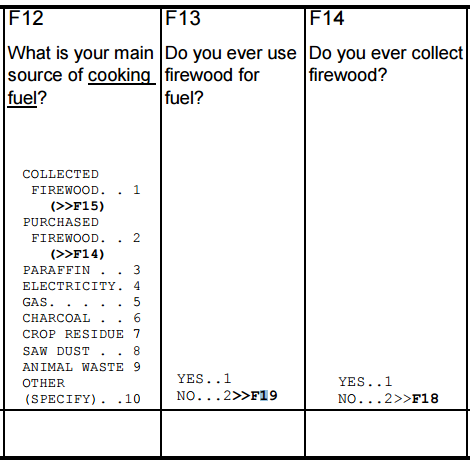
With InRange, identify those values that enable F13

// enable F13 if one of these answers selected for F12
hh_f12.InRange(3,10)

With IsNoneOf, identify those values that do NOT enable F13

// enable F13 if no firewood option is chosen for F12
hh_f12.IsNoneOf(1,2)

Categorical: single-select

Count values
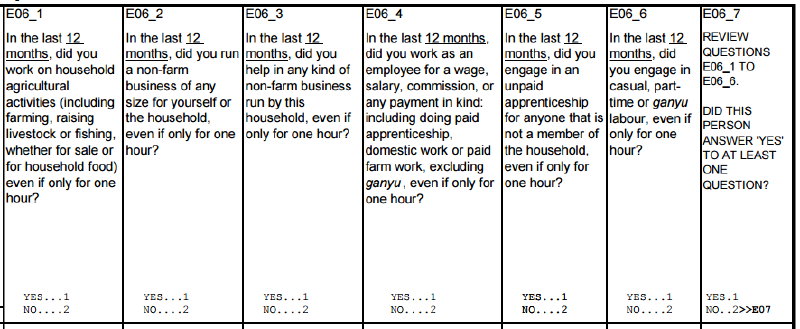
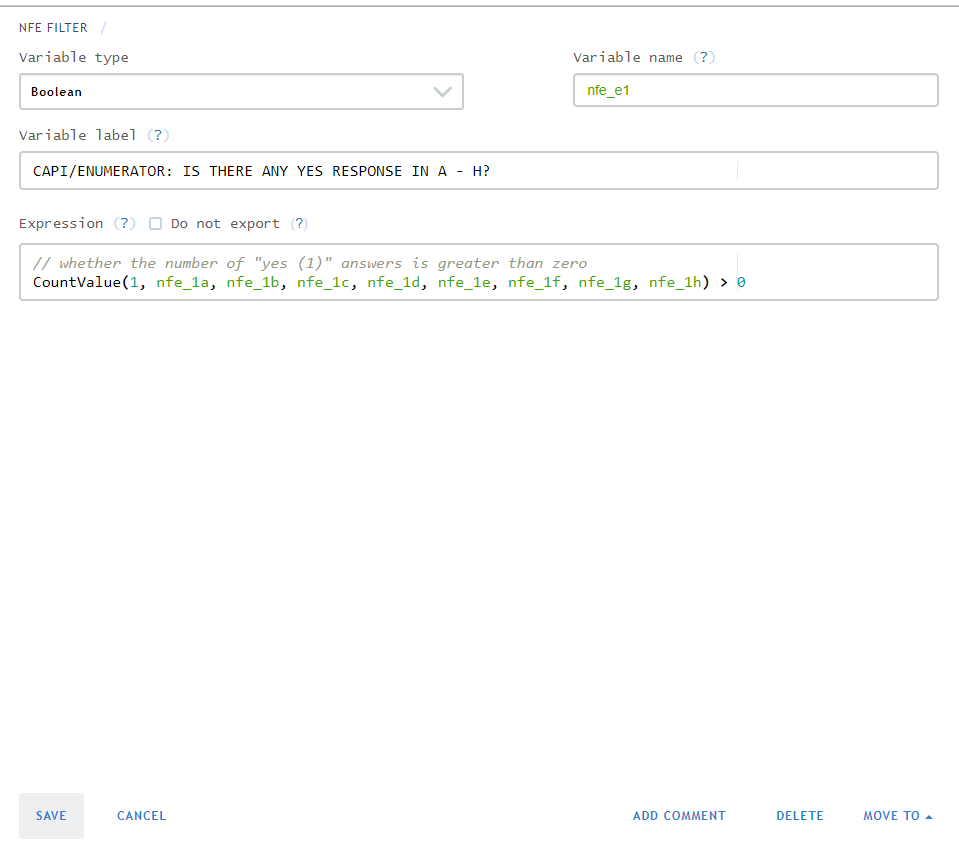
/* enable the questions after E06_6 if there is at least 1 "yes" answer */

// count the number of "yes" answers, and verify that it is greater than 0
CountValue(1,hh_e06_1,hh_e06_2,hh_e06_3,hh_e06_4,hh_e06_5,hh_e06_6) > 0

NOTE: This expression might be best used to determine the value of a variable. So let’s talk about variables (!= questions)…

Variables

What is a variable

  • Question answered by a computer rather than interviewer

What is a variable
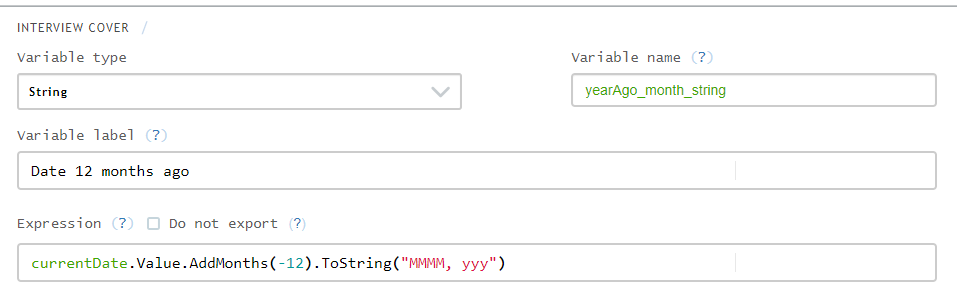
  • Question answered by a computer rather than interviewer
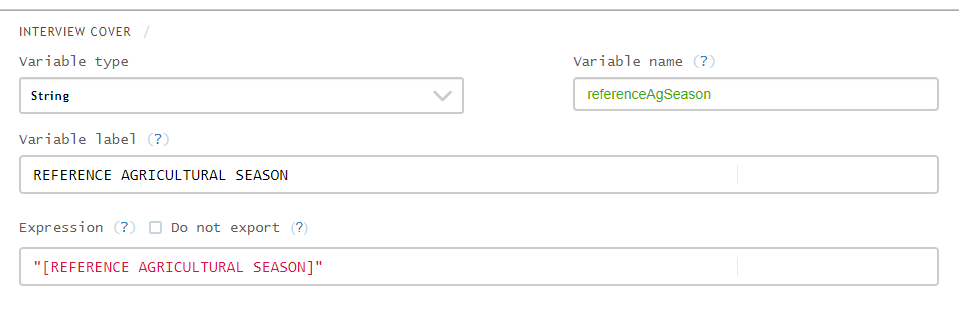
  • Object whose value is evaluated by an expression
    • Static expression (e.g., a fixed string value that depends on nothing)
    • Dynamic expression (e.g., a computation whose values derives from one or more question)

Why use a variable

  • Computer can answer questions more reliably than a person (e.g., ENUMERATOR: CHECK...)

Why use a variable
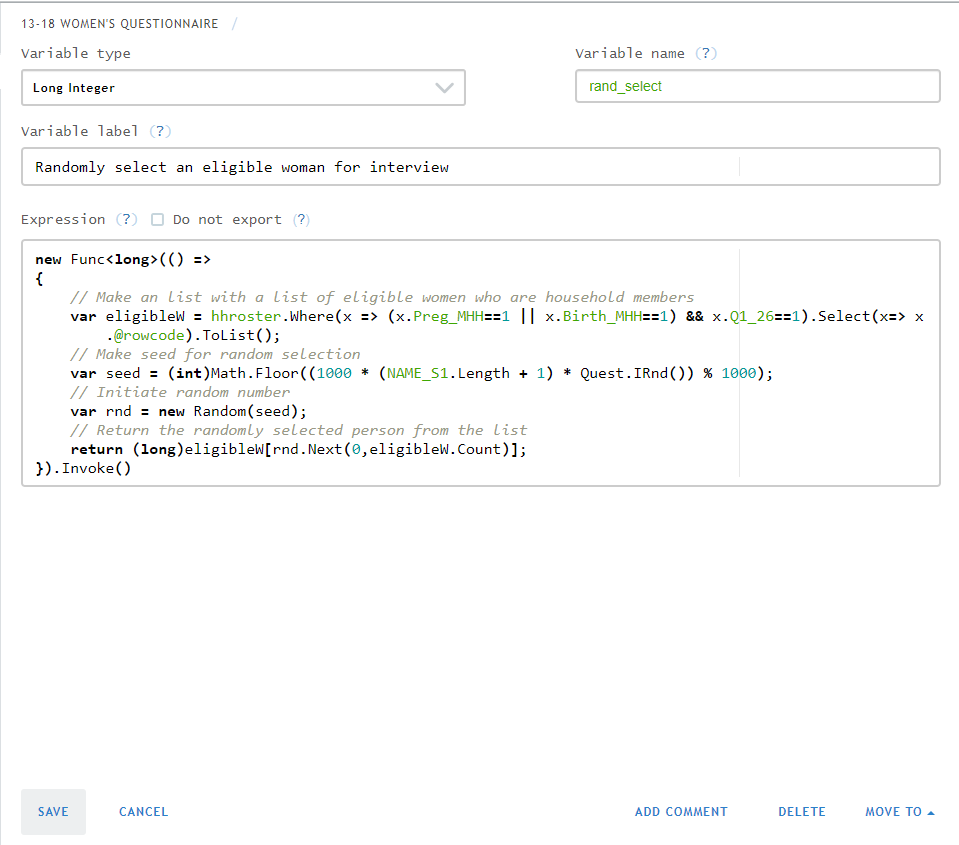
  • Computer can answer questions more reliably than a person (e.g., ENUMERATOR: CHECK...)
  • Value of an expression needs to be saved (e.g., randomization)

Why use a variable
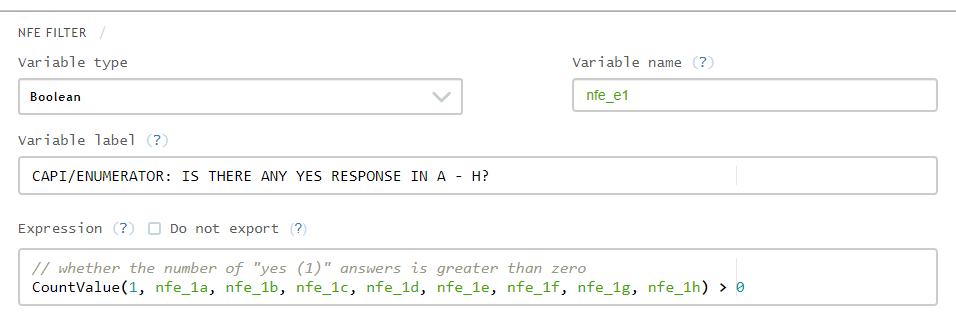
  • Computer can answer questions more reliably than a person (e.g., ENUMERATOR: CHECK...)
  • Value of an expression needs to be saved (e.g., randomization)
  • Value of an expression is used in other expressions

How to create a variable

  • Create a variable
    • Click on ADD VARIABLE button or
    • Right-click and select Add variable after
  • Select the (data) type
    • Boolean
    • Double
    • Date/Time
    • Long integer
    • String
  • Give the usual attributes
    • Variable name
    • Variable label
  • Define its value with an expression that yield a value of the expected data type
  • (Optionally) Select whether not to export (default: export)

Example: Non-farm enterprise filter